
Hyperdrive
- It indexes the names of files and folders in your home folder. It never reads file contents and never uses the network.
- It leaves out the Library folder, other disks mounted inside your home folder, and its own cache.
- Search results never show hidden items (names that start with a dot),
node_modules, or the insides of apps, frameworks, bundles and plug-ins. The .app itself is found. - Matching: the name contains the text you typed. Upper and lower case do not matter. Accents count: é does not match e.
- It returns the first 2,000 matches in name order. Fast Finder says when more exist.
- Speed: Hyperdrive searched an index of 6,508,588 files in 0.48 ms (p95, Files filter, 100 samples, Mac Studio with M2 Max). We timed the search engine, not the Fast Finder window.
- Requirements: Apple silicon, macOS 13 or later.
When Classic answers
Hyperdrive answers a plain name search in Home or in a folder inside it. A search for one file extension can also use Hyperdrive. Classic answers these:
- Whole Mac.
- Several words, patterns, the Type, Size and Modified filters, and several extensions.
- Folders outside your home folder.
- Search inside files.
- Cloud folders (OneDrive, Dropbox, Google Drive, iCloud Drive). In a Home search, Fast Finder adds their matching files to the same list. When Home already has 2,000 or more matches, Fast Finder shows the first 2,000 and says more exist. Type more of the name, or search inside the cloud folder, to see its files. Hyperdrive never asks a cloud provider to download anything, including folder listings.
- The first index build. Classic answers until Hyperdrive finishes its first scan.
- Any time Hyperdrive is not ready or fails. After 2 helper failures in one session, Hyperdrive pauses. To start it again, restart Fast Finder, or choose Hyperdrive again in Settings > Search > Search engine.
First start and cache
On the first start, Hyperdrive scans your home folder once. While it scans, a faint note beside the Hyperdrive search box says "Hyperdrive indexing... it takes a little while, but it is worth it." On one Mac with 6.7 million items in the home folder, the first index build took about 28 seconds. After its engine restarted with a saved index, Hyperdrive was ready to search in under 1 second.
The helper quits after 30 minutes without searches. It starts again when you search.
The cache is in the macOS per-user cache folder, in the subfolder ca.talk2me.fastfinder/hyperdrive. It is private to you. It is safe to delete. Fast Finder rebuilds it at the next start.
Switch engines
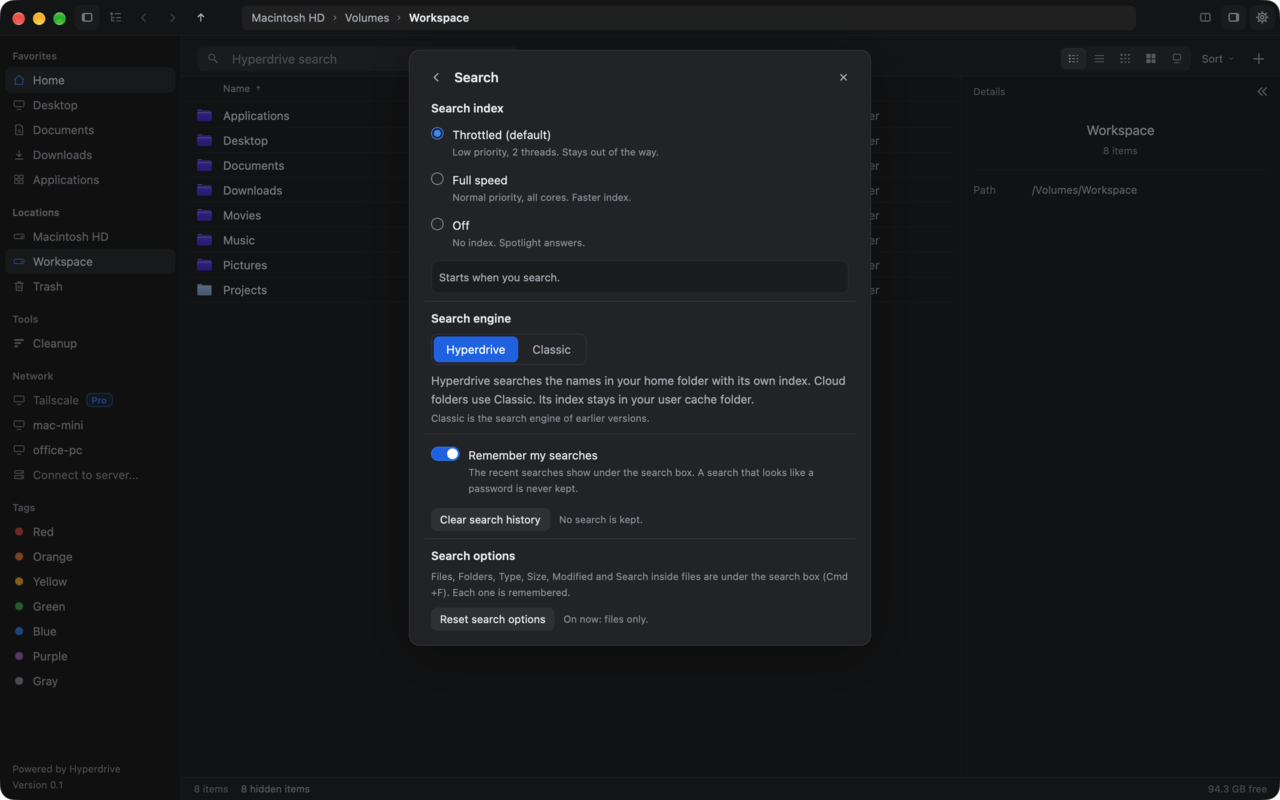
- Open Settings (the gear at the top right).
- Open the Search page.
- Under Search engine, choose Hyperdrive or Classic.
- Look at the sidebar footer. It says Powered by Hyperdrive or Powered by fsearch. The search box follows your choice. It says Hyperdrive search with Hyperdrive, and Fast search with Classic.
Windows
The Windows beta has no Hyperdrive and no search index. Search reads the names in the open folder and below it, for up to 8 seconds.
Get Fast Finder
Hyperdrive is on the Mac only. The Windows beta uses Classic search.